How to run Claude Code sessions on your Mac and manage them from your iPhone — with push notifications when Claude needs your attention.
I’ve been running six Claude Code sessions in parallel from my iPhone. No laptop in sight — just my phone, a terminal app, and my Mac humming away at home. When Claude finishes a task or needs input, my phone buzzes with the actual question. I tap the notification, respond, and get back to whatever I was doing.
This guide shows you how to set up the same workflow.
Credits & Inspiration
This setup combines ideas from two excellent guides:
- doom-coding by rberg27 — The original “code from your phone” approach using Tailscale, Termius, and tmux
- Claude Code On-The-Go by Granda.org — The push notification pattern using Claude Code hooks
I’ve adapted both for running on your own Mac rather than a cloud VM, and added a session picker script for easier navigation on mobile.
What You’ll Need
- A Mac running 24/7 (or at least when you want to code remotely)
- An iPhone with Tailscale and Termius installed
- Claude Code installed on your Mac
- A Claude Pro subscription
- The Pushcut app (for notifications)
The Architecture
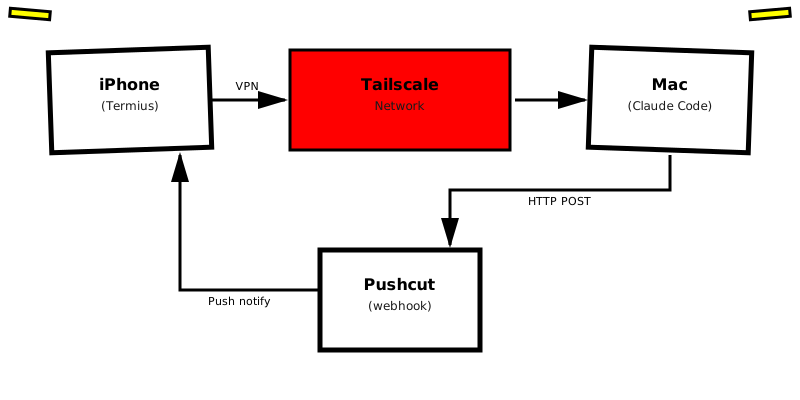
The flow is simple: SSH into your Mac through Tailscale’s private network, attach to a tmux session running Claude Code, and get push notifications when Claude needs input or finishes a task.
Part 1: Mac Setup
1.1 Prevent Sleep
Your Mac needs to stay awake. Go to System Settings → Energy and disable sleep, or use:
# Keep Mac awake indefinitely (run in a terminal)
caffeinate -d -i -sAlternatively, use Caffeinated — a menu bar app that makes it easy to prevent sleep with a single click. Much more convenient than running terminal commands.
1.2 Enable Remote Login (SSH)
Go to System Settings → General → Sharing and enable Remote Login.
1.3 Install Tailscale
Download from tailscale.com/download and sign in. Note your Mac’s MagicDNS address — it’ll look something like:
my-computer.example-tailnet.ts.net1.4 Install Claude Code
Follow the official installation guide. Make sure it’s working by running:
claude --version1.5 Create the Scripts Directory
mkdir -p ~/.local/bin
echo 'export PATH="$HOME/.local/bin:$PATH"' >> ~/.zshrc
source ~/.zshrc
1.6 Create the Session Picker Script
This gives you an arrow-key menu to select tmux sessions — much easier than typing session names on a phone keyboard.
cat > ~/.local/bin/tmux-picker << 'EOF'
#!/bin/bash
# Interactive tmux session picker for mobile terminals

sessions=($(tmux list-sessions -F "#{session_name}" 2>/dev/null))

if [ ${#sessions[@]} -eq 0 ]; then
    echo "No tmux sessions running."
    echo ""
    read -p "Create a new session? [y/N] " create
    if [[ "$create" =~ ^[Yy]$ ]]; then
        read -p "Session name: " name
        tmux new-session -s "${name:-main}"
    fi
    exit 0
fi

selected=0
total=${#sessions[@]}

show_menu() {
    clear
    echo "══════════════════════════════"
    echo "   Select a tmux session"
    echo "═══════════════════════════════"
    echo ""
    for i in "${!sessions[@]}"; do
        if [ $i -eq $selected ]; then
            echo "  ► ${sessions[$i]}"
        else
            echo "    ${sessions[$i]}"
        fi
    done
    echo ""
    echo "───────────────────────────────"
    echo " ↑/↓: navigate  Enter: attach"
    echo " n: new session  q: quit"
    echo "───────────────────────────────"
}

while true; do
    show_menu
    read -rsn1 key

    if [[ $key == \x1b ]]; then
        read -rsn2 key
        case $key in
            '[A') ((selected--)); [ $selected -lt 0 ] && selected=$((total - 1)) ;;
            '[B') ((selected++)); [ $selected -ge $total ] && selected=0 ;;
        esac
    elif [[ $key == "" ]]; then
        tmux attach -t "${sessions[$selected]}"
        break
    elif [[ $key == "n" ]]; then
        read -p "Session name: " name
        tmux new-session -s "${name:-main}"
        break
    elif [[ $key == "q" ]]; then
        break
    fi
done
EOF
chmod +x ~/.local/bin/tmux-picker
1.7 Auto-Launch Picker on SSH Login
Add this to your ~/.zshrc:
# Auto-run tmux picker on SSH login
if [[ -n "$SSH_CONNECTION" && -z "$TMUX" ]]; then
    ~/.local/bin/tmux-picker
fi
Part 2: Push Notifications with Pushcut
This is what makes mobile development practical. Without notifications, you’d constantly check the terminal. With them, you can walk away and get buzzed when Claude needs you.
2.1 Install Pushcut on Your iPhone
Download Pushcut from the App Store.
2.2 Create a Notification in Pushcut
- Open Pushcut and tap + to create a new notification
- Name it Claude Code (this becomes part of your webhook URL)
- Leave the title and text blank — the hook script will set these dynamically
- Tap Webhook to reveal your unique URL
- Copy the URL — it looks like:
https://api.pushcut.io/abc123xyz/notifications/Claude%20Code
2.3 Create the Notification Hook Script
On your Mac:
mkdir -p ~/.claude/hooks

cat > ~/.claude/hooks/notify.sh << 'EOF'
#!/bin/bash
# Claude Code notification hook for Pushcut
# Replace YOUR_API_KEY with your actual Pushcut webhook secret

PUSHCUT_URL="https://api.pushcut.io/YOUR_API_KEY/notifications/Claude%20Code"

# Claude Code passes hook data via stdin
INPUT=$(cat)

PROJECT=$(basename "$PWD")

# Check if this is an AskUserQuestion event (has tool_input) or a Stop event
TOOL_INPUT=$(echo "$INPUT" | /opt/homebrew/bin/jq -r '.tool_input // empty' 2>/dev/null)

if [ -n "$TOOL_INPUT" ]; then
    # AskUserQuestion event — extract the question
    MESSAGE=$(echo "$INPUT" | /opt/homebrew/bin/jq -r '.tool_input.questions[0].question // "needs your input"' 2>/dev/null)
else
    # Stop event — Claude has finished
    MESSAGE="Task complete ✓"
fi

curl -s -X POST "$PUSHCUT_URL" \
    -H "Content-Type: application/json" \
    -d "{\"title\": \"$PROJECT\", \"text\": \"$MESSAGE\"}"
EOF

chmod +x ~/.claude/hooks/notify.sh
Important: Replace YOUR_API_KEY with the secret from your Pushcut webhook URL.
2.4 Configure Claude Code Hooks
Edit ~/.claude/settings.json (create it if it doesn’t exist):
{
    "hooks": {
        "PreToolUse": [
            {
                "matcher": "AskUserQuestion",
                "hooks": [
                    {
                        "type": "command",
                        "command": "/Users/YOUR_USERNAME/.claude/hooks/notify.sh"
                    }
                ]
            }
        ],
        "Stop": [
            {
                "hooks": [
                    {
                        "type": "command",
                        "command": "/Users/YOUR_USERNAME/.claude/hooks/notify.sh"
                    }
                ]
            }
        ]
    }
}
Important: Replace YOUR_USERNAME with your actual macOS username. Use the full path — hooks run in a minimal environment without your usual PATH.
2.5 Test the Notification
curl -s -X POST "https://api.pushcut.io/YOUR_API_KEY/notifications/Claude%20Code" \
    -H "Content-Type: application/json" \
    -d '{"title": "Test", "text": "Did this come through?"}'
Your phone should buzz immediately.
Part 3: iPhone Setup
3.1 Install Tailscale
Download Tailscale from the App Store and sign in with the same account you used on your Mac.
3.2 Install Termius
Download Termius from the App Store. It’s the best SSH client for iOS — handles mosh connections and has a usable keyboard for terminal work.
3.3 Create a Host in Termius
- Open Termius and tap + to add a new host
- Fill in:
- Label: Whatever you want (e.g., “Mac”)
- Hostname: Your Mac’s MagicDNS address (e.g.,
my-computer.example-tailnet.ts.net) - Port: 22
- Username: Your macOS username
- Password: Your macOS password
Part 4: The Workflow
Starting Sessions (on your Mac, before you leave)
Create tmux sessions for each project:
# Session for project 1
tmux new-session -s ecomow
cd ~/Code/ecomow
claude

# Detach with Ctrl+B, then D

# Session for project 2
tmux new-session -s platform21
cd ~/Code/platform21
claude

# Detach with Ctrl+B, then D
Working Remotely (from your iPhone)
- Enable Tailscale VPN on your iPhone
- Open Termius and connect to your Mac
- The session picker launches automatically — use arrow keys to select a session
- Give Claude a task and pocket your phone
- Get notified when Claude needs input or finishes
- Respond and repeat
Useful tmux Commands
| Command | Action |
|---|---|
Ctrl+B, D | Detach (leave session running) |
Ctrl+B, [ | Scroll mode (useful for reading output) |
q | Exit scroll mode |
Ctrl+B, c | Create new window |
Ctrl+B, n | Next window |
Ctrl+B, p | Previous window |
Viewing Dev Servers
If Claude starts a dev server, access it through Tailscale. Instead of localhost:4324, use:
http://my-computer.example-tailnet.ts.net:4324/Note: Some dev servers bind to localhost only. Start them with the host flag:
# Vite
vite --host

# Next.js
next dev -H 0.0.0.0

# Generic
node server.js --host 0.0.0.0
Troubleshooting
No notifications received
- Check that
notify.shis executable:chmod +x ~/.claude/hooks/notify.sh - Verify the Pushcut URL is correct
- Test the webhook manually with curl
- Restart Claude Code after changing
settings.json
Notification shows “needs your input” instead of the actual question
The jq binary isn’t being found. Hooks run in a minimal shell environment. Use the full path:
# Find your jq path
which jq

# Update the script to use the full path (usually /opt/homebrew/bin/jq on Apple Silicon)
Can’t connect via Termius
- Check Tailscale is enabled on both devices (green dot in the app)
- Verify SSH/Remote Login is enabled on your Mac
- Try the IP address instead of MagicDNS name
- Check your Mac isn’t asleep
Dev server not accessible
Make sure the server binds to 0.0.0.0 not just localhost. Most frameworks have a --host flag for this.
Best Practices
End sessions with a handoff note
Before detaching, ask Claude to update a CLAUDE.md file with where you left off. Next time you attach, you’ll have context.
Use descriptive session names
Name sessions after projects: tmux new-session -s ecomow rather than tmux new-session -s session1.
Keep sessions focused
One project per session. If you need to work on multiple features, use tmux windows within a session (Ctrl+B, c to create, Ctrl+B, n to cycle).
Bookmark dev URLs
On your iPhone, bookmark your common dev server URLs so you don’t have to type the full Tailscale hostname each time.
What This Enables
The pattern is asynchronous development: kick off a task that will take Claude 10-20 minutes, do something else, get notified, respond, repeat.
Development fits into the gaps of the day instead of requiring dedicated desk time. Review PRs while waiting for coffee. Fix a bug from the couch. Kick off a refactor on the train.
Six agents, six projects, one phone.
Happy doom coding!